Step 3 · 8 min
Connect Meta AI glasses
Steps 1 to 4 happen in Meta’s own app. Carbyn connects from step 5.
1Get the latest Meta AI app#
Open Google Play and search for Meta AI. Tap Install or Update. If the button says Open, you have the latest version.
2Pair your glasses in Meta AI#
Open Meta AI and sign in with your Meta account. Turn on Bluetooth, keep the glasses next to your phone, and follow the app’s setup to add them.
Already use your glasses with Meta AI? Skip this step, but still do steps 1 and 3.
3Update your glasses#
In Meta AI, open Settings, tap your glasses under Glasses, then Updates. Install any update that is offered.
Leave Automatic updates on. The connection can fail on old software.
4Send us your Meta AI email#
Carbyn is in Meta’s test channel. We add your Meta AI account to it by email.
Find it in Meta AI: Settings › Accounts Center › Profiles and personal details › Contact info.
Email it to support@carbyn.ai. Meta sends you an invite. Accept it.
5Start in Carbyn#
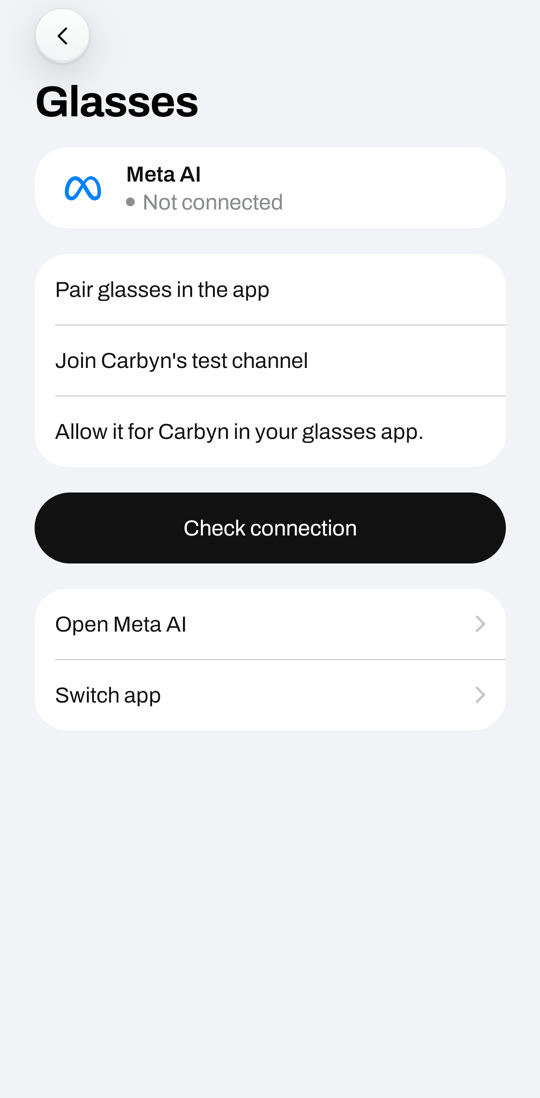
In Carbyn: Settings › Glasses › Meta AI. Tap Check connection.
If Android asks to find nearby devices, tap Allow. Meta AI opens.
6Connect and allow the camera#
In Meta AI, tap Connect, then allow the camera for Carbyn. Come back to Carbyn.
7Test your glasses#
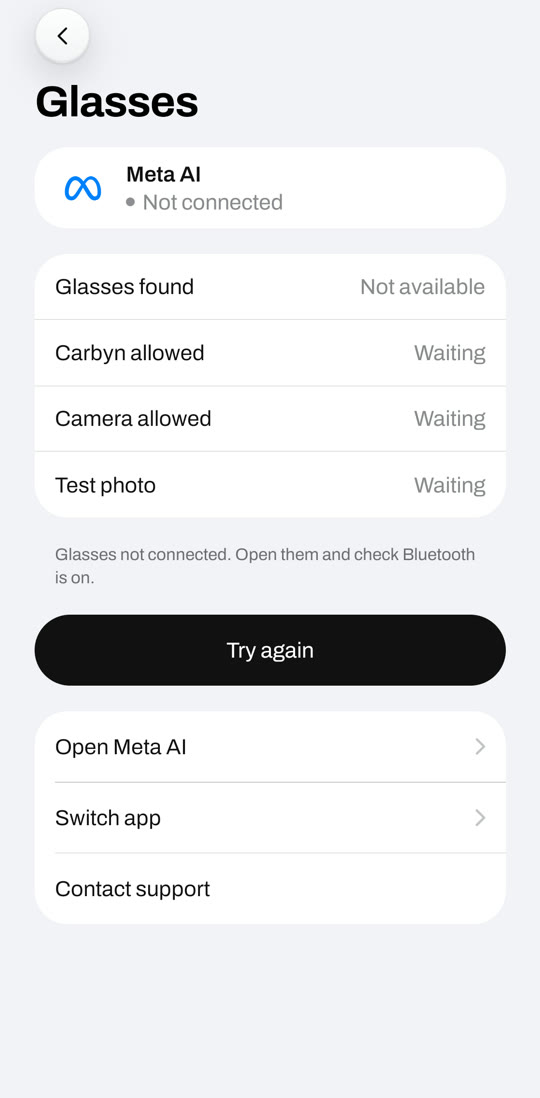
Carbyn checks four things: Glasses found, Carbyn allowed, Camera allowed and Test photo.
When all four are done, Carbyn shows Connected. Tap Test glasses. You should see Photo OK.
Quick fixes#
- “Glasses not connected”
- Open the glasses and check Bluetooth is on. Then tap Try again.
- Meta AI does not open
- Tap Open Meta AI on the same screen. It opens Meta AI, or its Google Play page if it is not installed.
- No invite from Meta
- Email us the address from step 4 again.