Step 2 · 2 min
Complete your profile
You can change any of this later.
1Open your profile#
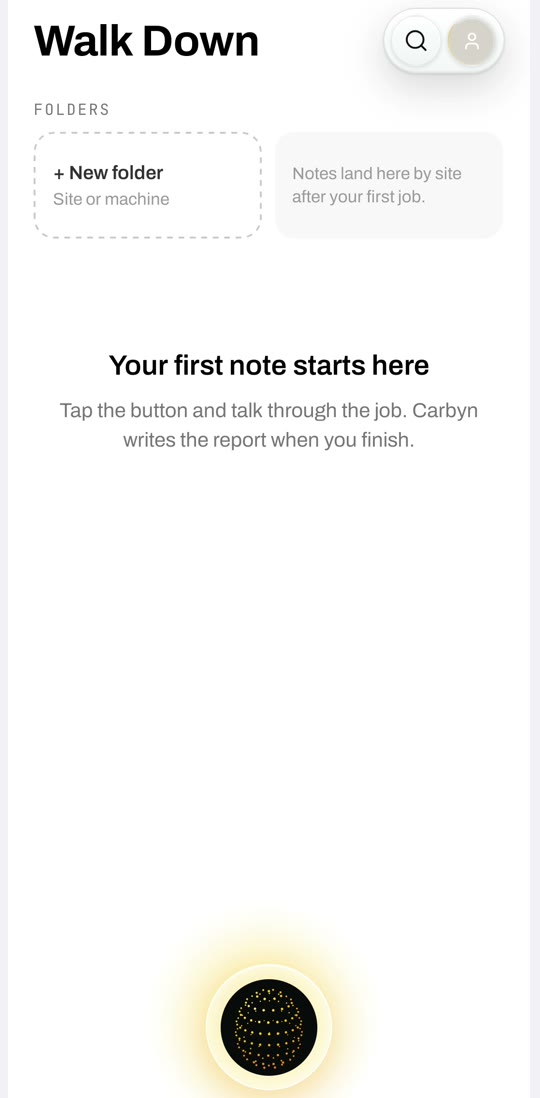
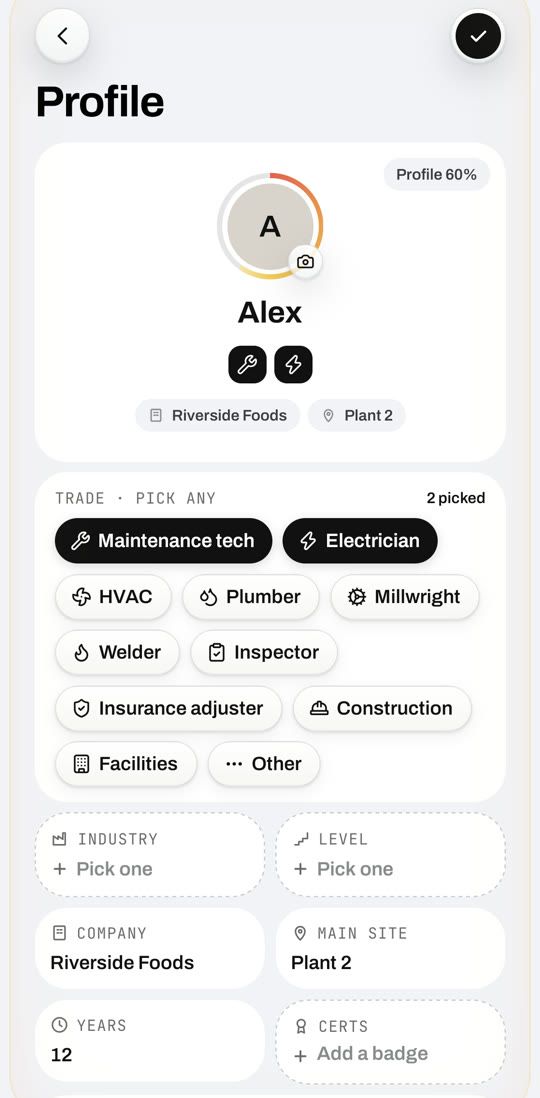
On Walk Down, tap your picture, top right. Then tap Your profile.
2Pick your trade#
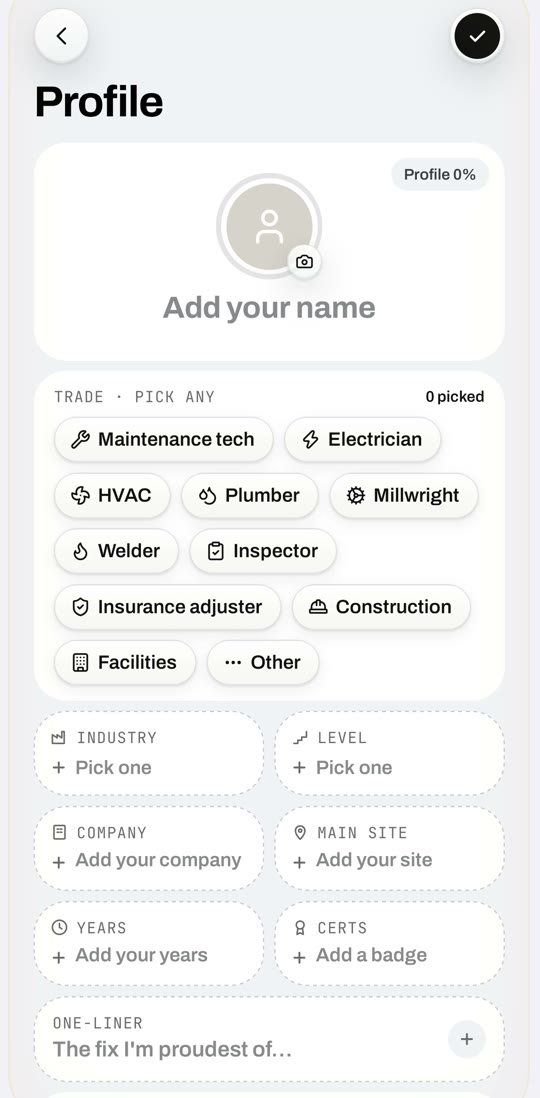
Tap every trade that fits.
3Add your company and site#
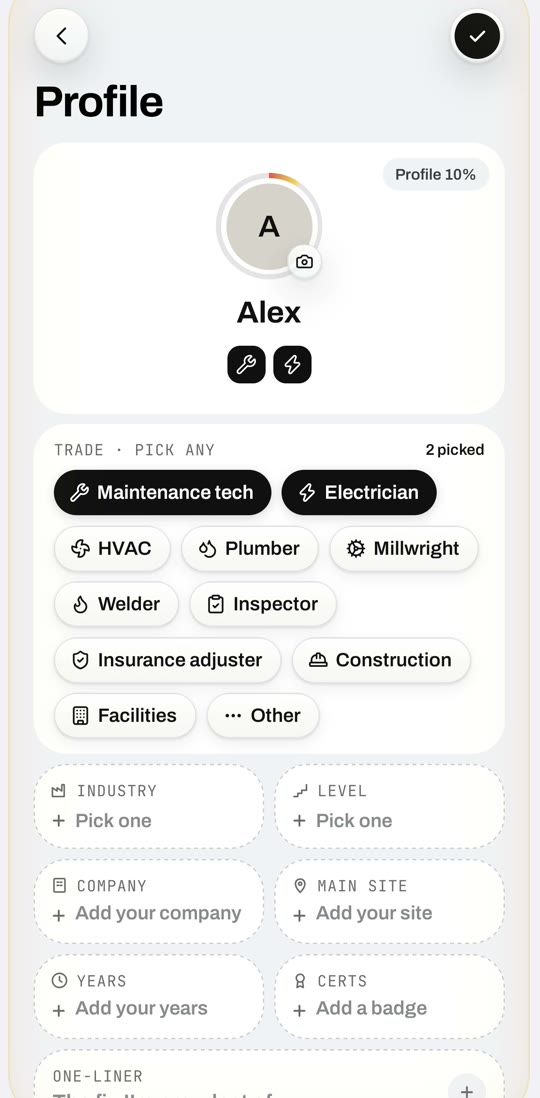
Type your Company, Main site and Years.
4Write your one-liner#
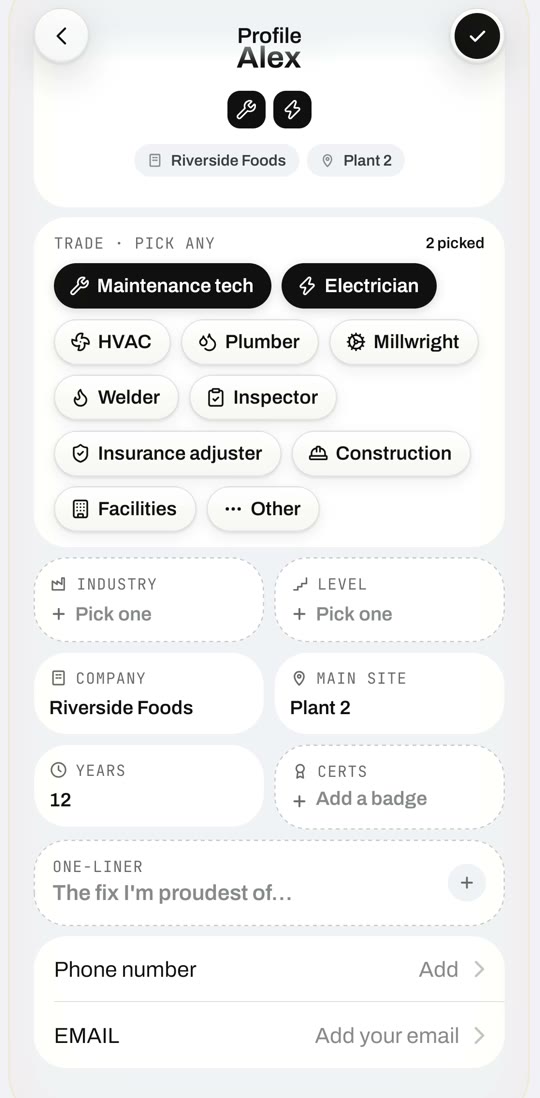
One sentence: the fix you’re proudest of.
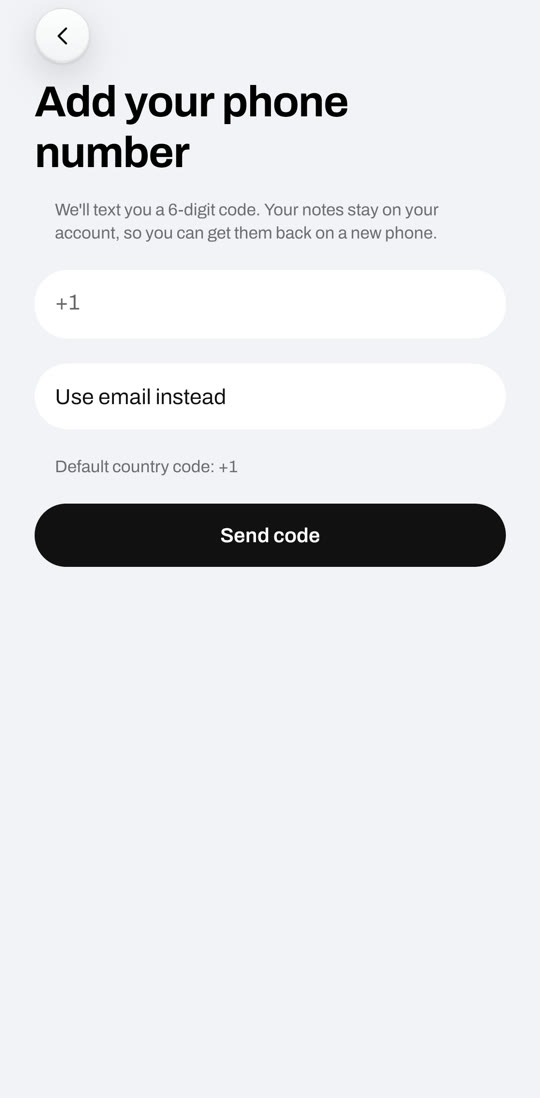
5Add your phone number#
Tap Phone number. Type it, then tap Send code. Enter the 6-digit code from the text message.
6Save#
Tap the check mark, top right.
Sign out and back in#
Settings › Sign out.
To come back: Settings › Your profile › Phone number, and verify the same number. Your profile comes back. Notes made on this phone while signed out stay with the signed-out account.
Quick fixes#
- No text message
- Wait a minute, then tap Send code again. Or tap Use email instead.
- The keyboard covers a field
- Tap the title at the top to close the keyboard, then tap the next field.