Step 4 · 2 min
Connect eMaint
You need your eMaint URL, username and password.
Ask your eMaint admin if you don’t have them.
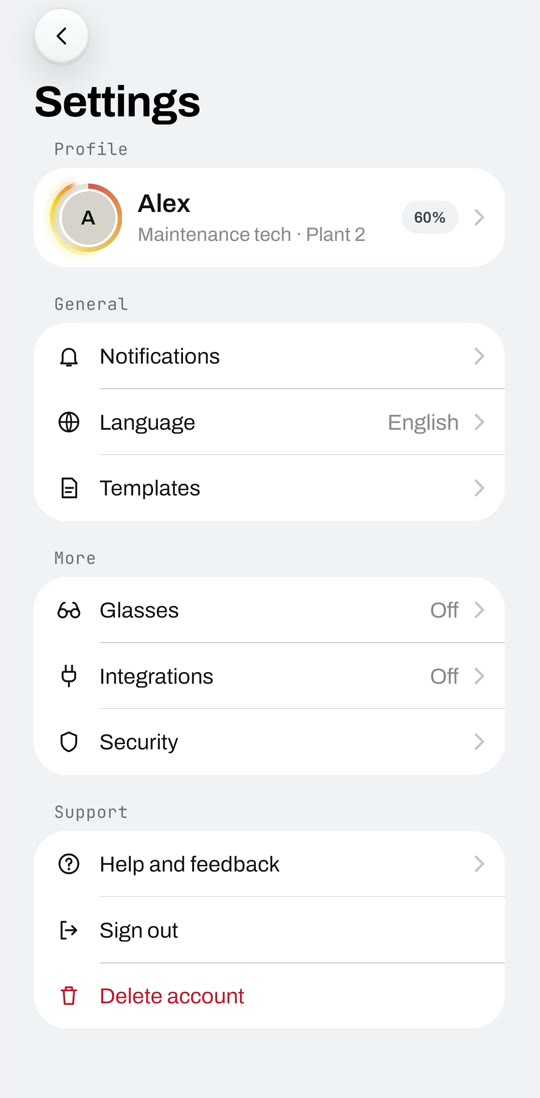
1Open Integrations#
Settings › Integrations › eMaint.
2Enter your eMaint details#
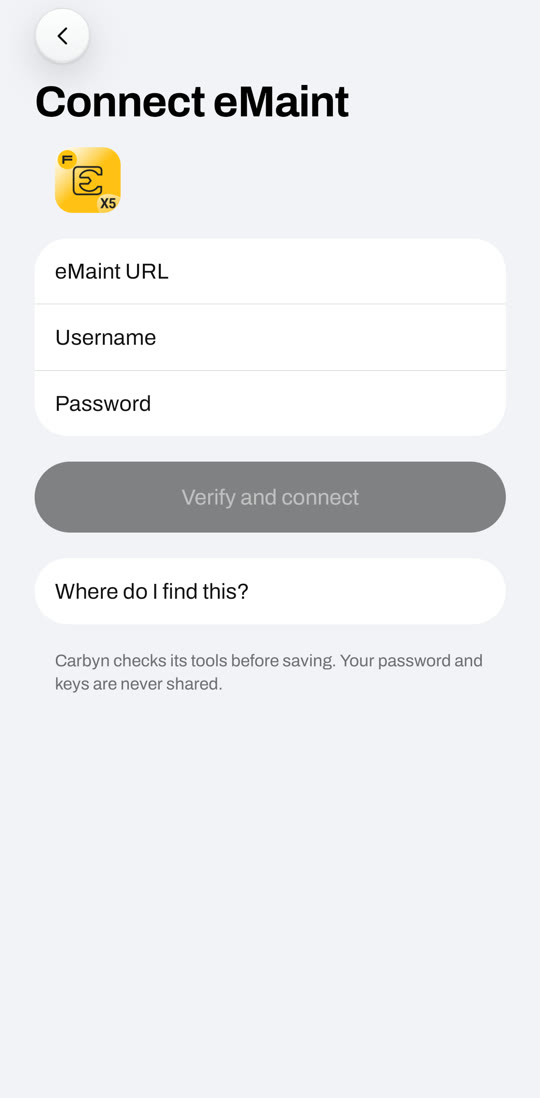
Type your eMaint URL, Username and Password. Tap Verify and connect.
Not sure where to find them? Tap Where do I find this? Your password and keys are never shared.
3Let Carbyn check#
Carbyn checks that it can read, create and close work orders, and find an asset. Nothing in eMaint is changed.
4Connected#
eMaint shows Connected. Carbyn can now send work orders from your notes.
Quick fixes#
- “Can’t load integrations”
- Tap the line to try again. The first load can take a few seconds.
- A check fails
- Tap Check tools again.
- Wrong URL or password
- Integrations › eMaint › Change key.
- Stop using eMaint
- Integrations › eMaint › Disconnect.