CRBYNDocs
chatmobileweb
carbyn.ai
iOS|Android

Get started

  • Overview
  • Introduction

Setup

  • 1Install with TestFlight
  • 2Complete your profile
  • 3Connect glasses
  • 4Connect your system
  • 5Add the Carbyn button

Daily use

  • 6Walk-down report
  • 7Work order cards

Help

  • Support & account
  • support@carbyn.ai

Step 5 · 1 min

Add the Carbyn button

Start a note without opening the app.

1Add the button#

  1. 1. Swipe down from the top-right corner.
  2. 2. Press and hold an empty spot, then tap Add a Control.
  3. 3. Search Carbyn and tap Record a note.
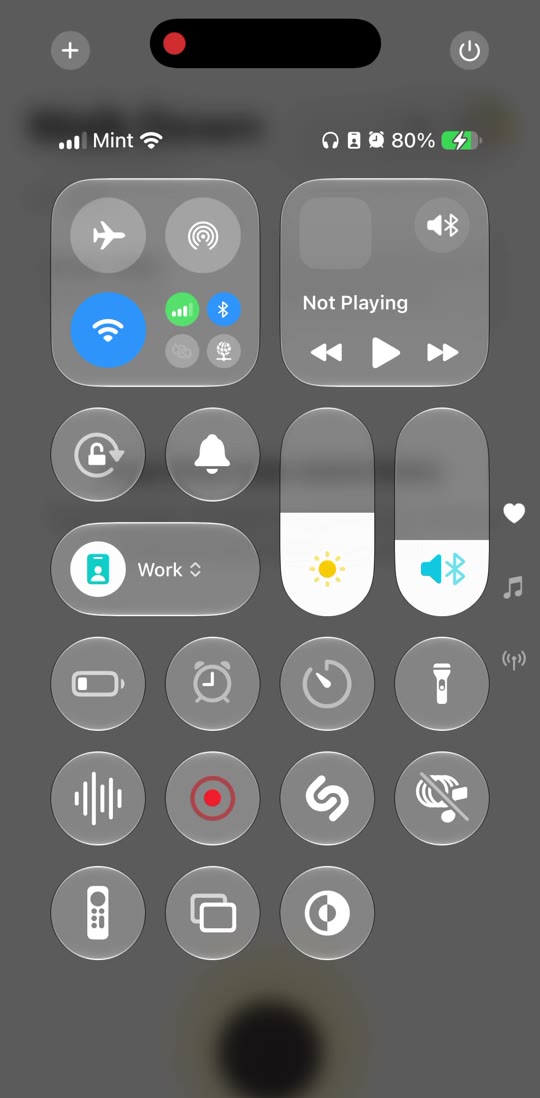
Control Center in edit mode: Add a Control, searching Carbyn, then adding Record a note
Add a Control › search Carbyn › Record a note

2Start a note#

On the lock screen, swipe down from the top-right corner and tap the Carbyn button. Carbyn opens on Listening.

You do not need to unlock the phone.
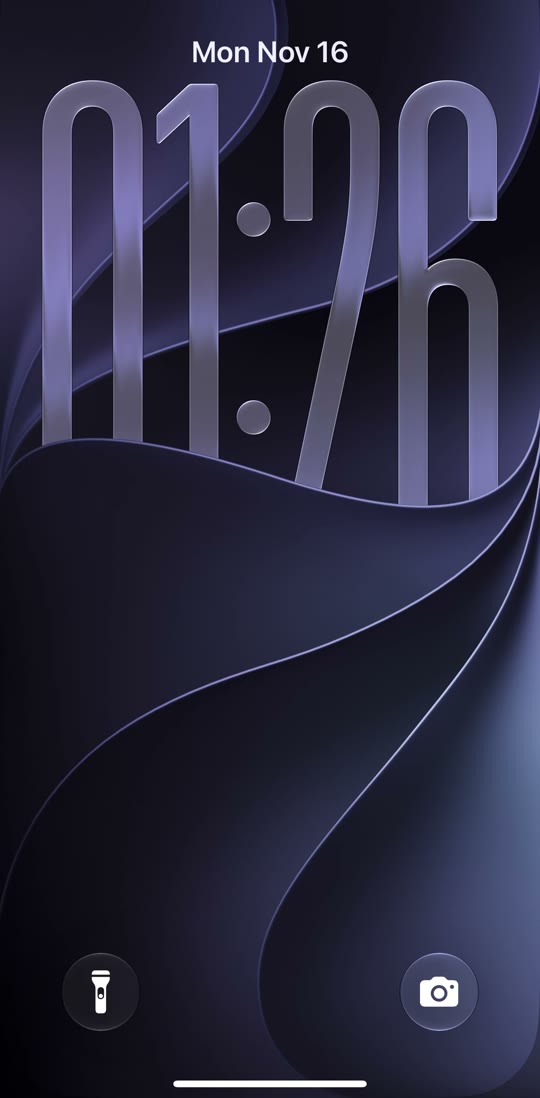
iPhone lock screen: swiping down to Control Center, tapping the Carbyn button, and Carbyn opening on Listening
Lock screen › Carbyn button › Listening

3End it from the lock screen#

While Carbyn listens, the lock screen shows Recording. Tap End.

The first time, iPhone asks to keep allowing Live Activities from Carbyn. Tap Always Allow.
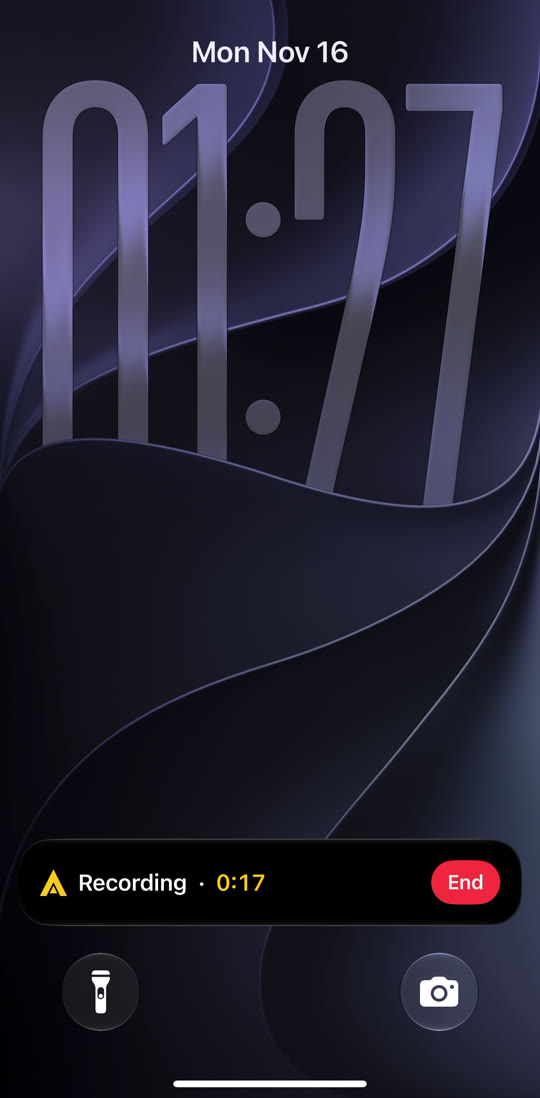
iPhone lock screen with a Carbyn banner that reads Recording and a red End button, highlighted
Lock screen › End

Quick fixes#

No Carbyn in the list
Open Carbyn once, then try again.
← PreviousConnect your systemNext · Step 6 →Walk-down report
Carbyn AI, Inc.TermsPrivacy