Step 6 · 3 min
Your walk-down report
Carbyn writes one report for every session you end.
1Open your report#
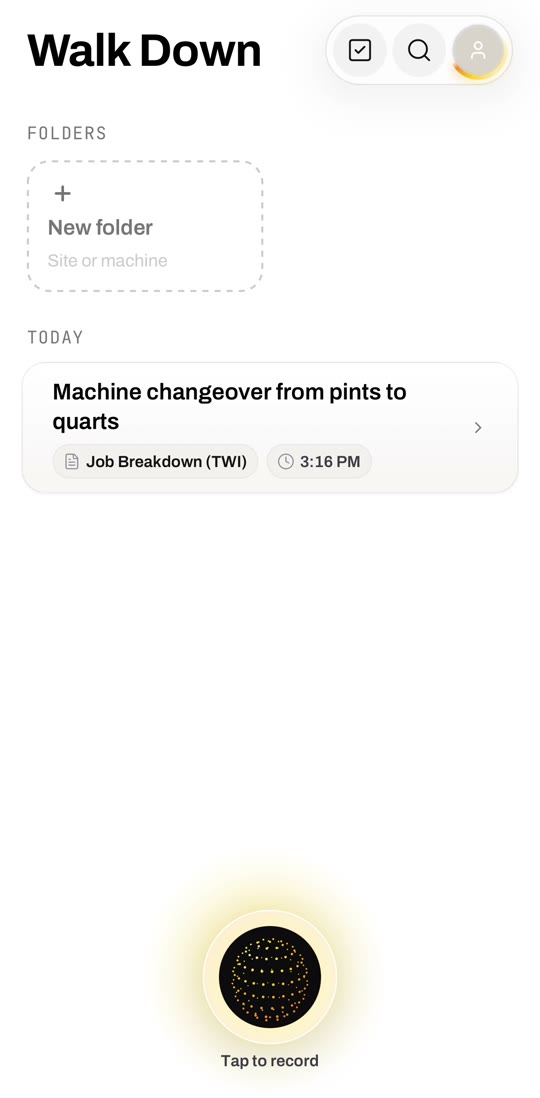
When you end a session, Carbyn writes the report. It shows up under Today in Walk Down. Tap it.
Photos from the walk sit under each step. Tap a time like ▶ 0:21 to play that moment.
2Change the template#
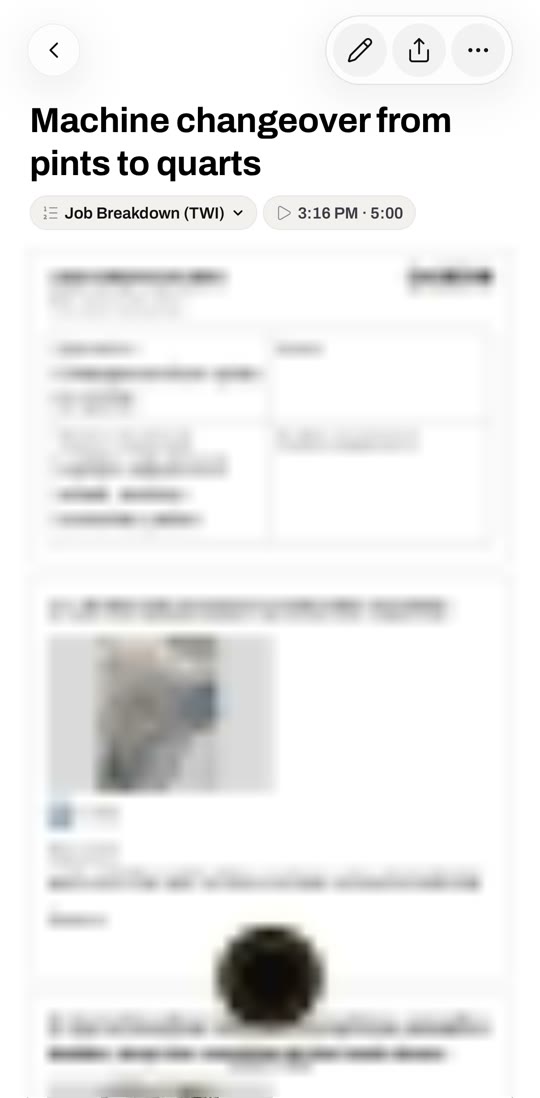
Tap the template name under the title. Pick another one, such as Job Breakdown, One-Point Lesson or Service Visit Report.
Carbyn rewrites the same recording in that layout. Auto lets Carbyn pick.
3Fix anything#
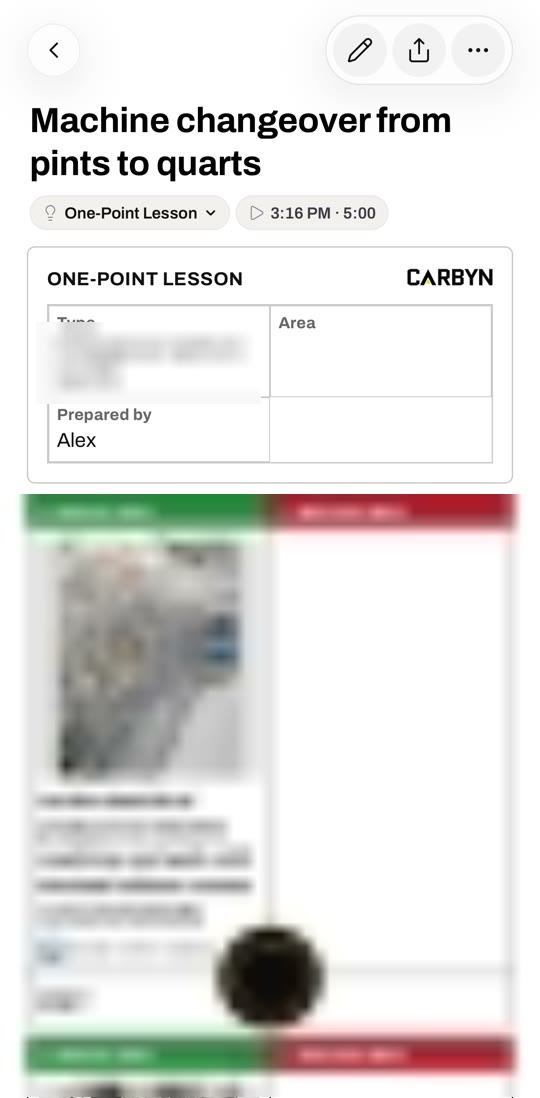
Tap the pencil. Tap any field and type. Tap ✓ to save.
Tap × next to a step to remove it.
4Ask about the job#
Hold the button at the bottom and ask. Carbyn answers from this recording and shows where in the video it heard it.
Tap a time to play that moment.
If the microphone is off, tap the button and type.
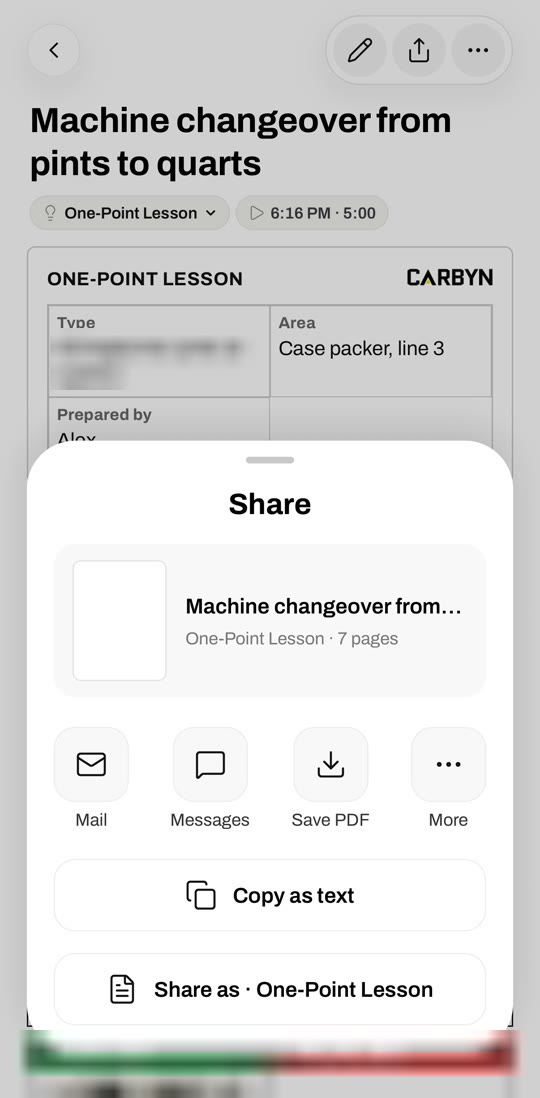
5Share it#
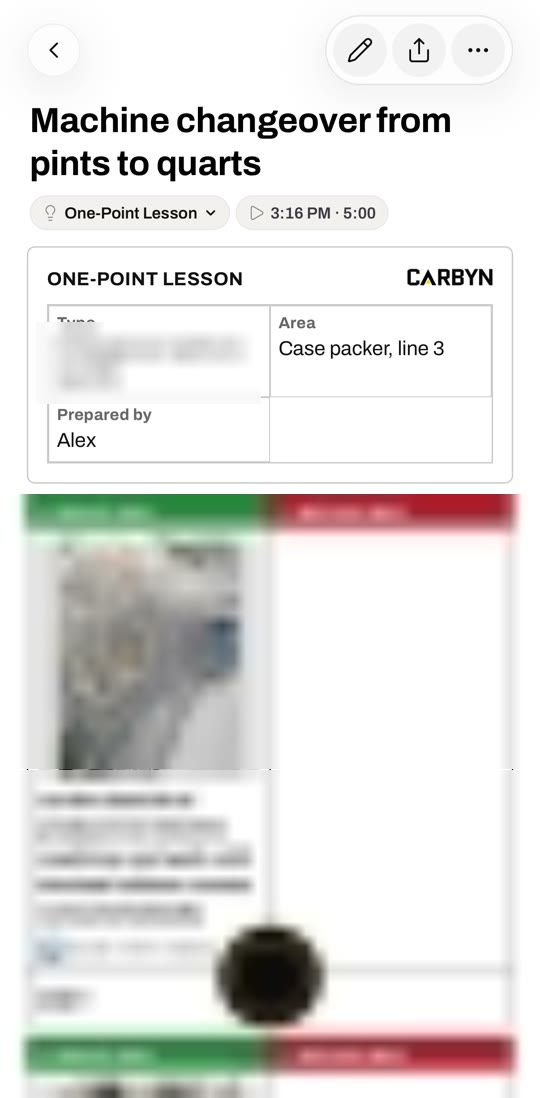
Tap the share button at the top right. Carbyn turns the report into a PDF in the template you picked.
Send it by Mail or Messages, save the PDF, or copy it as text.
Sharing needs the phone number you added in Complete your profile.
Quick fixes#
- The report says Writing
- Carbyn is still writing. Keep the app open with signal. It takes about a minute.
- “Couldn’t answer. Try again.”
- Ask again. A short question works best.
- “Sign up to share”
- Add your phone number. See Complete your profile.