Step 7 · 3 min
Work order cards
Nothing reaches eMaint until you send it.
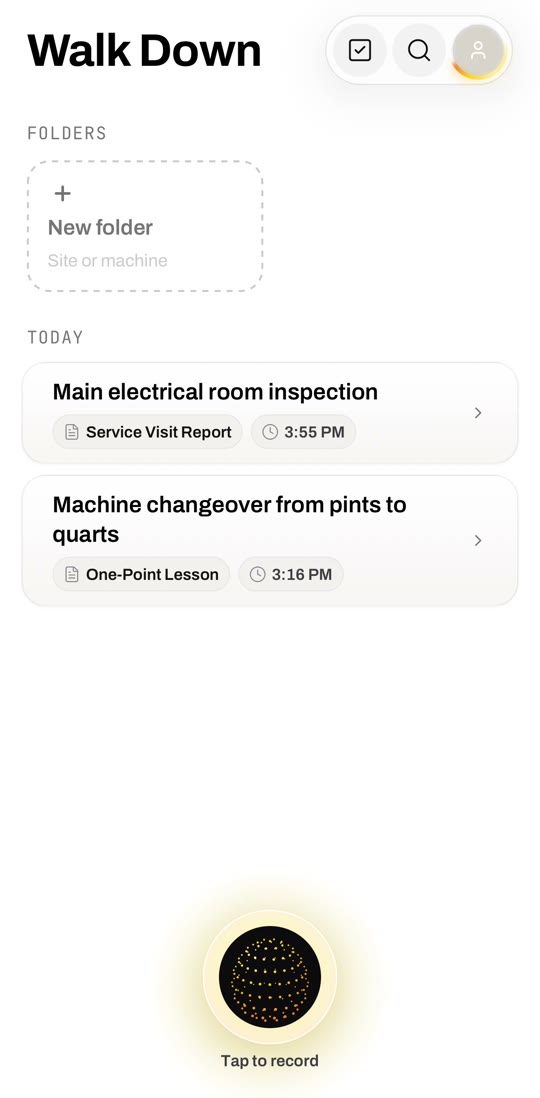
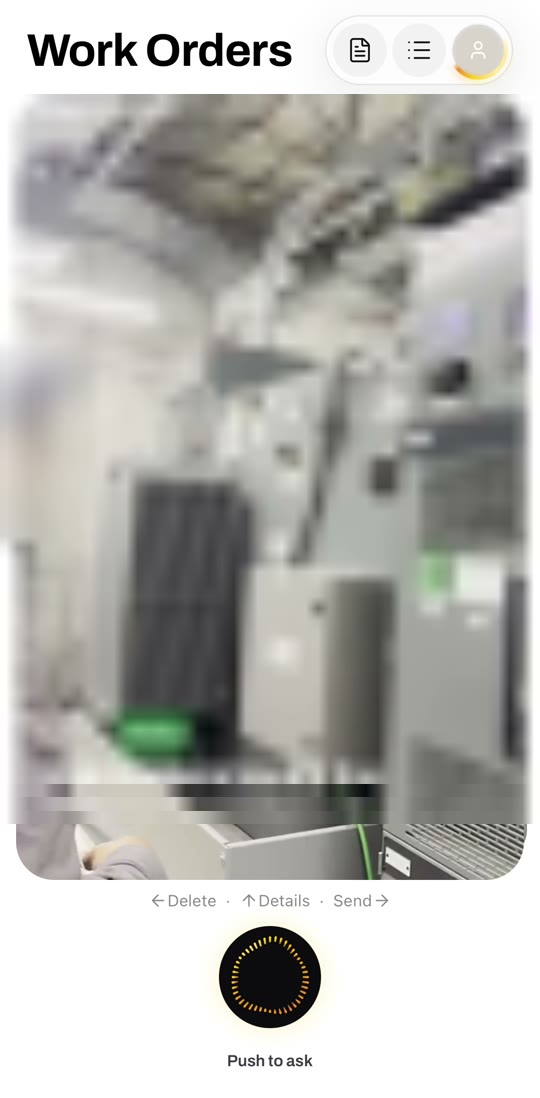
1Find your cards#
Say what needs doing during the walk-down, for example: “Let’s create a work order for this.” Each job becomes one card.
Tap the check box at the top of Walk Down to open Work Orders. Tap the cards icon to see one card at a time.
2Check and fix a card#
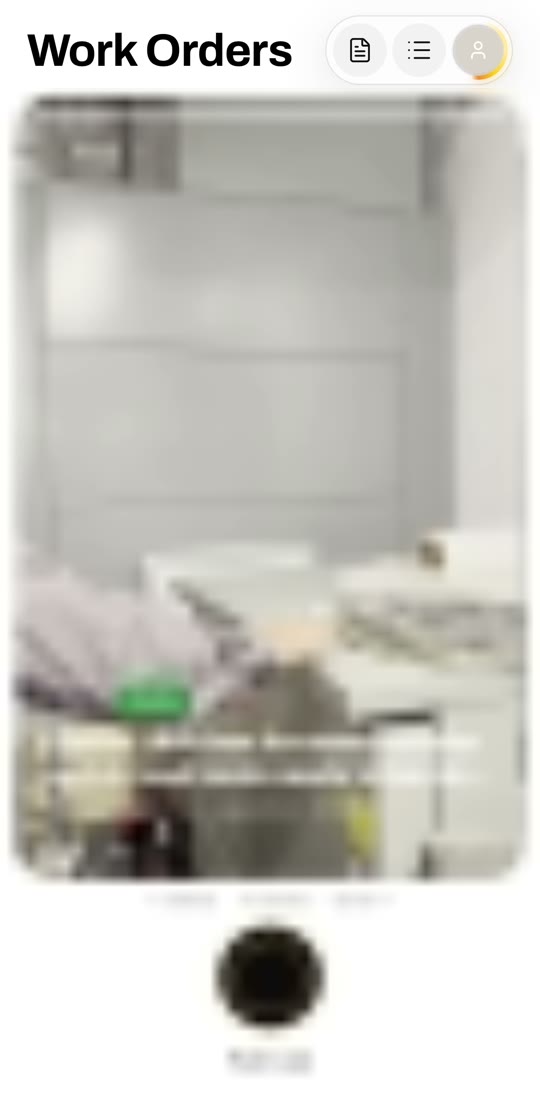
Swipe up for the details. Tap a field to change it.
The fields follow your work order form, for example Title, Description, Asset and Priority.
3Send it#
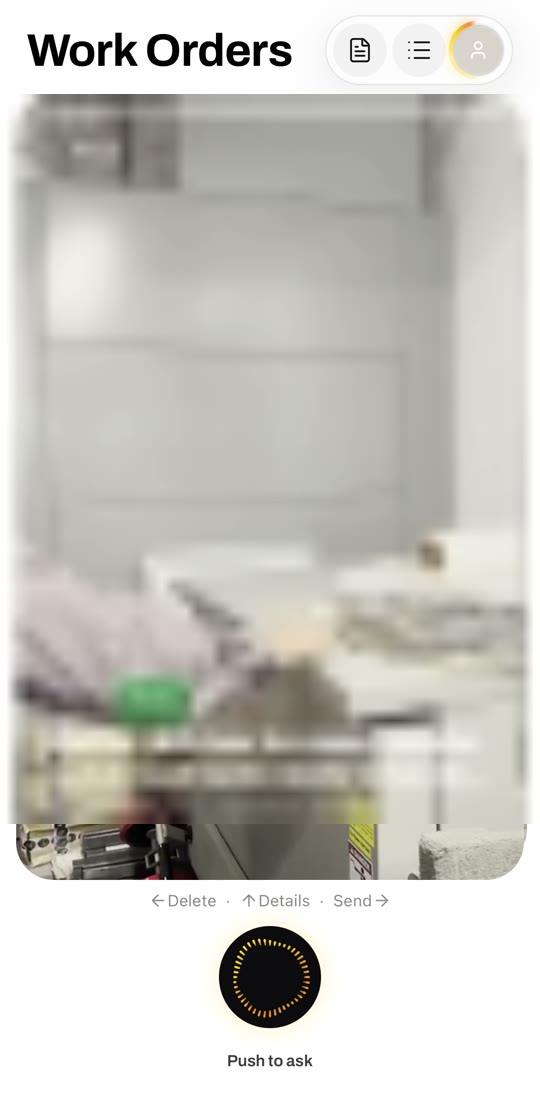
Swipe right to send the card to eMaint. Tap Undo within 5 seconds to keep it.
In the list, tap Send to eMaint to send every card that is ticked.
4Delete it#
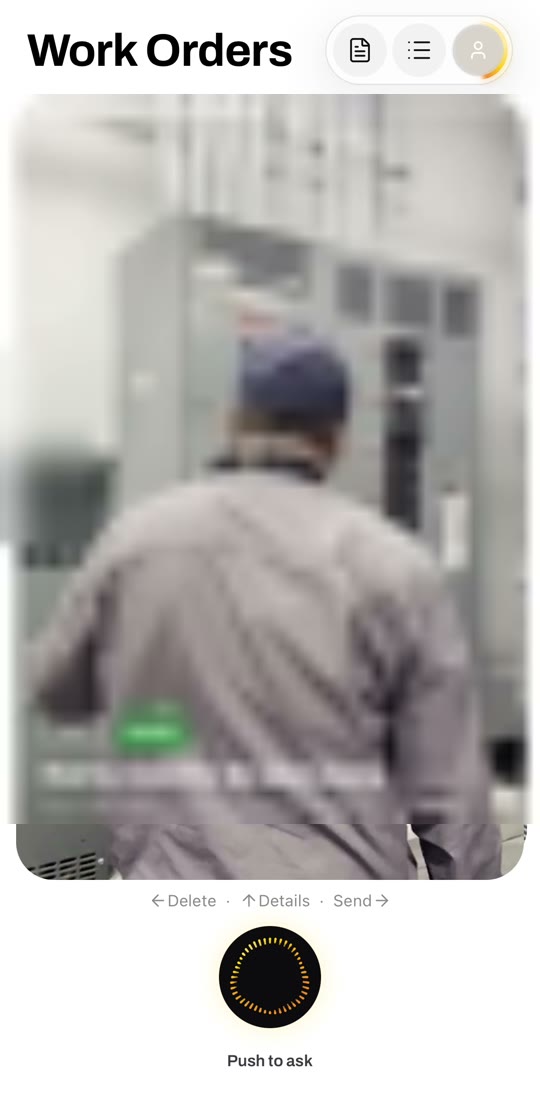
Swipe left to delete the card. It stays in the report.
Tap Undo within 5 seconds to keep it.
5Ask about it#
Hold the button at the bottom and ask. Carbyn answers from the walk-down that made the card.
If the microphone is off, tap the button and type.
Quick fixes#
- No cards
- Connect your work order system first (step 4). Then say what needs doing during the walk-down.
- A card is missing right after the report
- Wait a few seconds. Cards come in just after the report.
- Sent the wrong card
- Tap Undo within 5 seconds.