Step 3 · 5 min
Record, add, check out
This is the part you repeat. Do the job as you always do, with the glasses on. Carbyn turns what you did and said into a written procedure.
One job at a time is easiest
1Get ready#
- Take the glasses from the case. A full charge records about one hour of video.
- Wipe the lens. A smear on the lens blurs every photo in the procedure.
- Wear them over or with your safety glasses the way your site allows.
2Record the job#
Press and hold the capture button to start. Press it again to stop. The white light stays on while it records.
- Keep your hands in the picture. Tilt your chin down a little when you work below chest height.
- Say what you are doing as you do it: the part, the setting, the number, and what you check.
- Say why when a step matters. “I tighten this first so the core does not slide.”
- Point at it and hold for a second when you read a gauge or a screen.
A clip ends at 5 minutes. Start the next one and carry on. The time each clip was shot keeps them in order.
3Copy the clips to the iPad#
Fold the glasses, or put them in the case, next to the iPad. The iPad joins the glasses' own Wi-Fi for a moment and copies the clips to Photos. Tap Join if it asks.
Wait for the import to end before you open Carbyn. The iPad leaves your Wi-Fi while it copies.
4Add the clips in Carbyn#
Open Carbyn from the Home Screen. On Home, tap Add clips and photos and pick today's files from Photos.
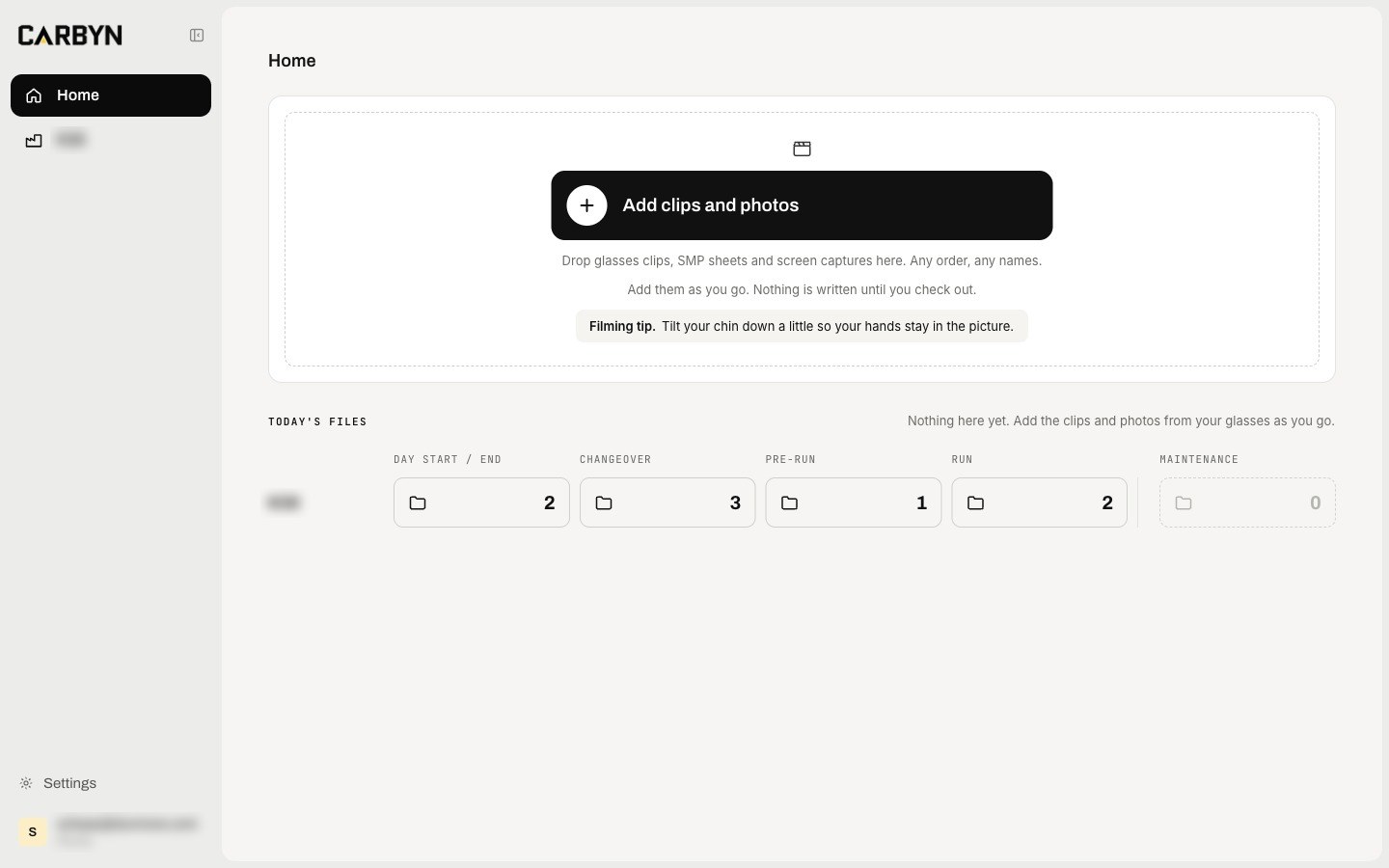
Any order and any file names. Photos of a settings sheet or a screen go in the same way.
5Keep the iPad awake#
Carbyn shows how much is left. Leave Carbyn on screen, and the iPad on its charger, until the upload ends.
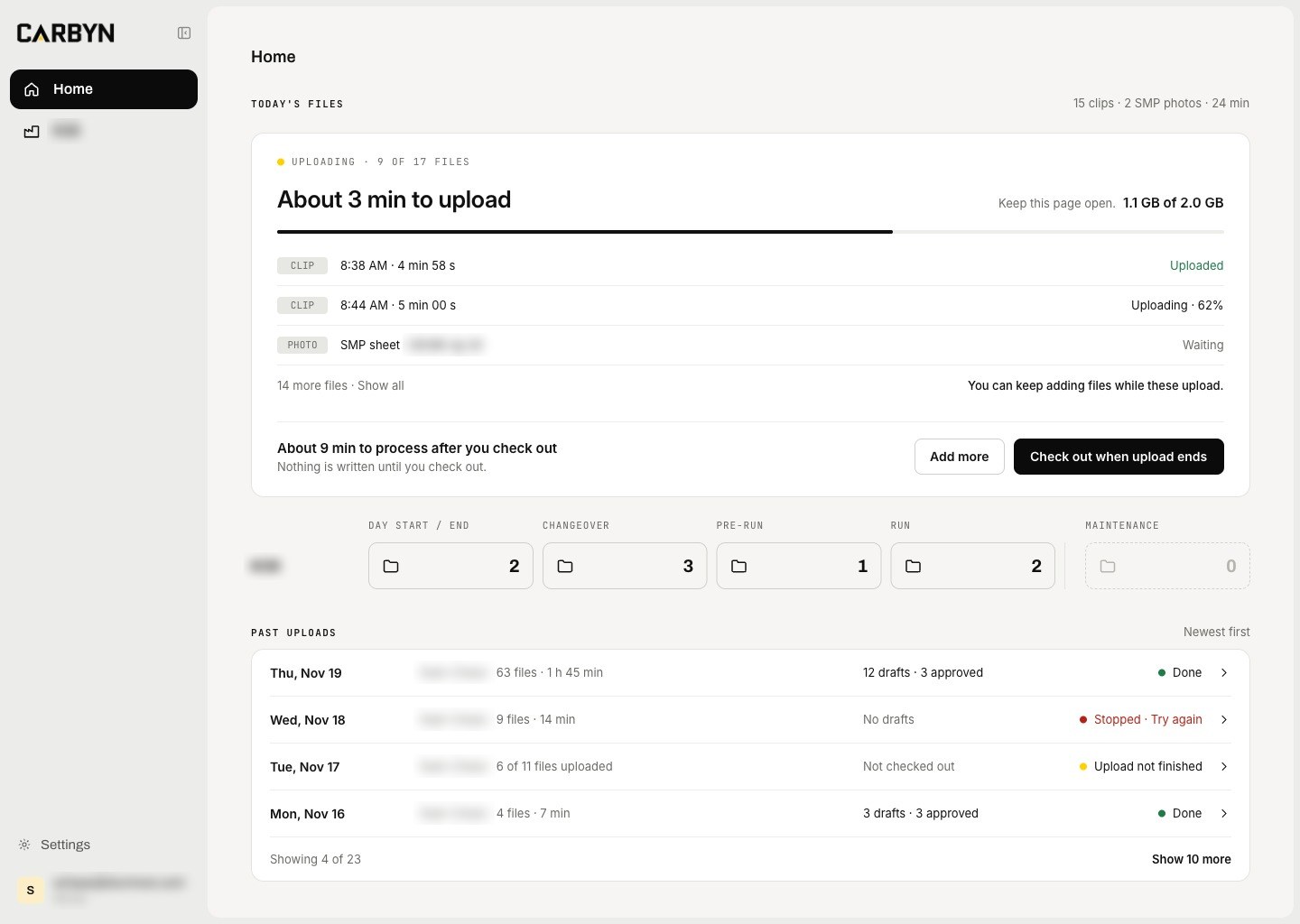
You can keep adding files while the first ones upload. Tap Add more.
6Check out#
When the day's files are in, tap Check out. Nothing is written until you do.
When Carbyn is done, Home says how many drafts are ready.
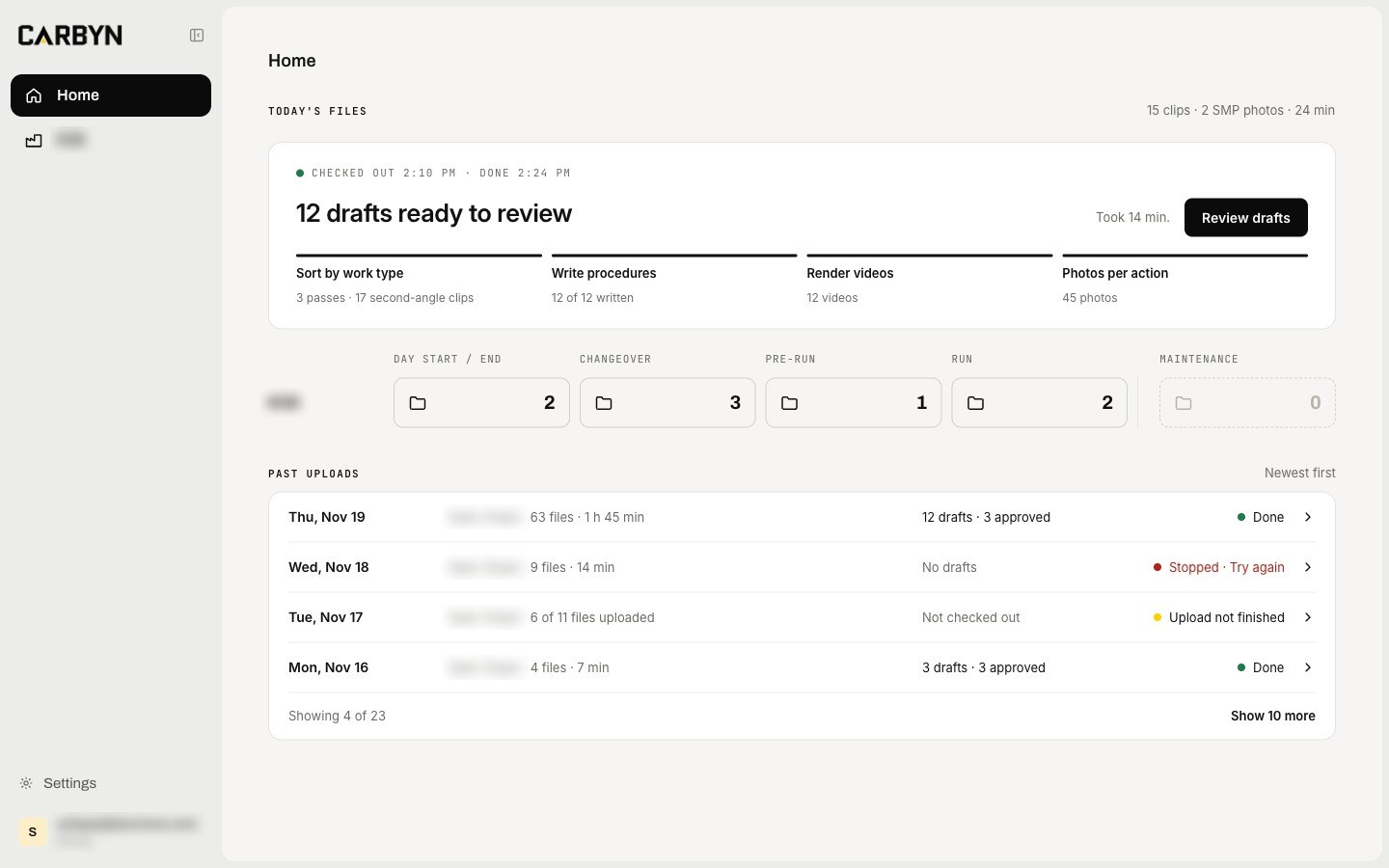
Carbyn watches the clips, listens to what you said, sorts them by job, and writes a draft for each one. The screen shows the time left. You can close Carbyn and come back.
Good to know#
- The video goes from the glasses to the iPad to Carbyn. It is not sent to Meta's cloud when Cloud media is off.
- The clips stay in Photos on the iPad until you delete them.
Quick fixes#
- The clip stopped by itself
- A clip ends at 5 minutes. Press and hold the capture button to start the next one. The time each clip was shot keeps them in order.
- Clips are not in Photos
- Check Bluetooth and Wi-Fi are on. In the Meta AI app tap Glasses, then Import.
- The upload stopped
- Open Carbyn again and continue the upload. Files already sent are kept.
- A file was added by mistake
- Remove it before you check out. Nothing is written until then.
- Something else
- Email support@carbyn.ai.