Step 4 · 5 min
Review and approve
A draft is Carbyn's best reading of your video. You are the one who knows the job, so you are the one who makes it right.
What is in a draft
1Open a draft#
On Home, tap Review drafts and pick one. The video is on one side and the steps are on the other.
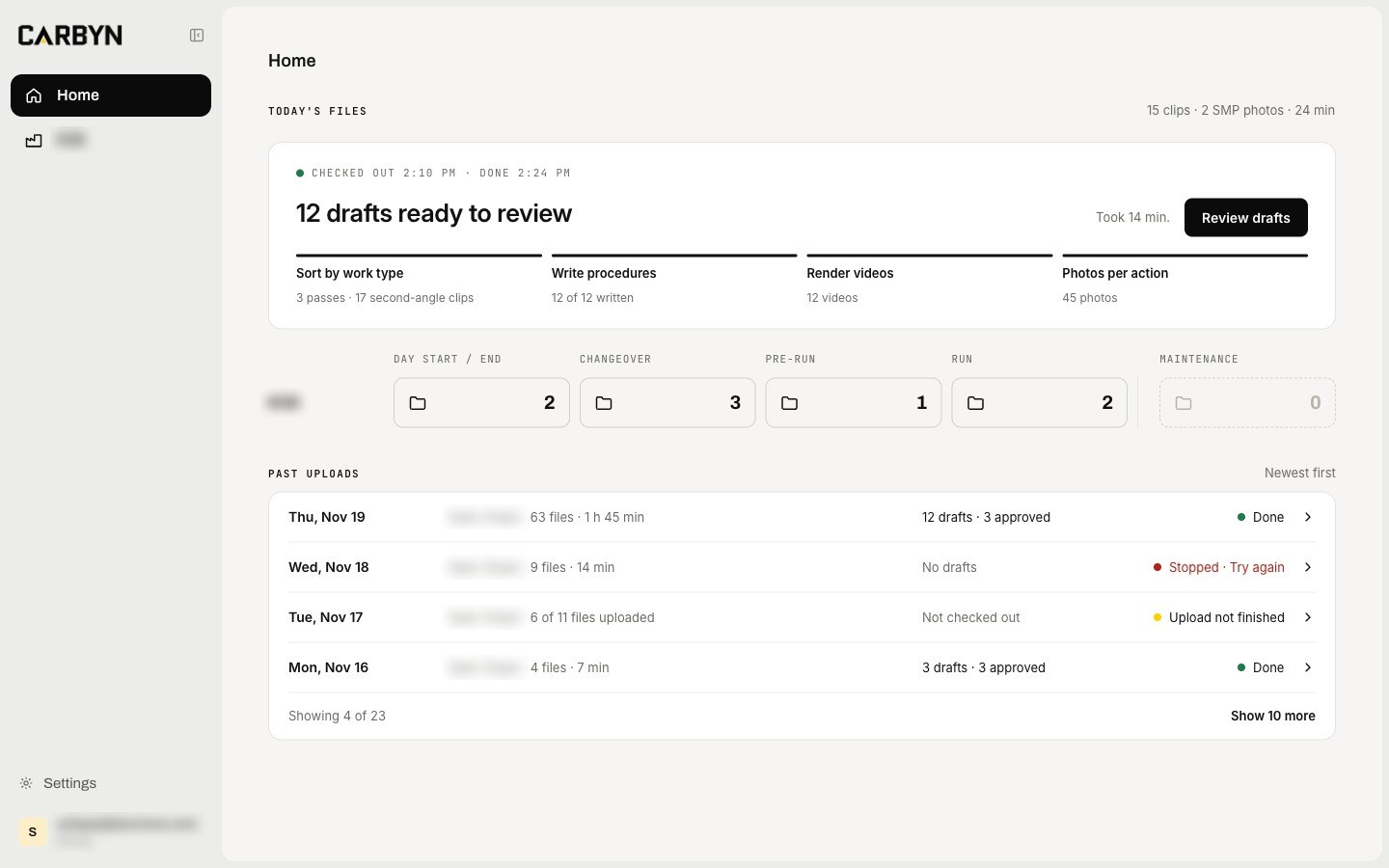
Drafts are sorted by the kind of work, for example start of day, changeover, and run.
2Check each step against the video#
Tap a step. The video jumps to that part. Watch it and read the step next to it.
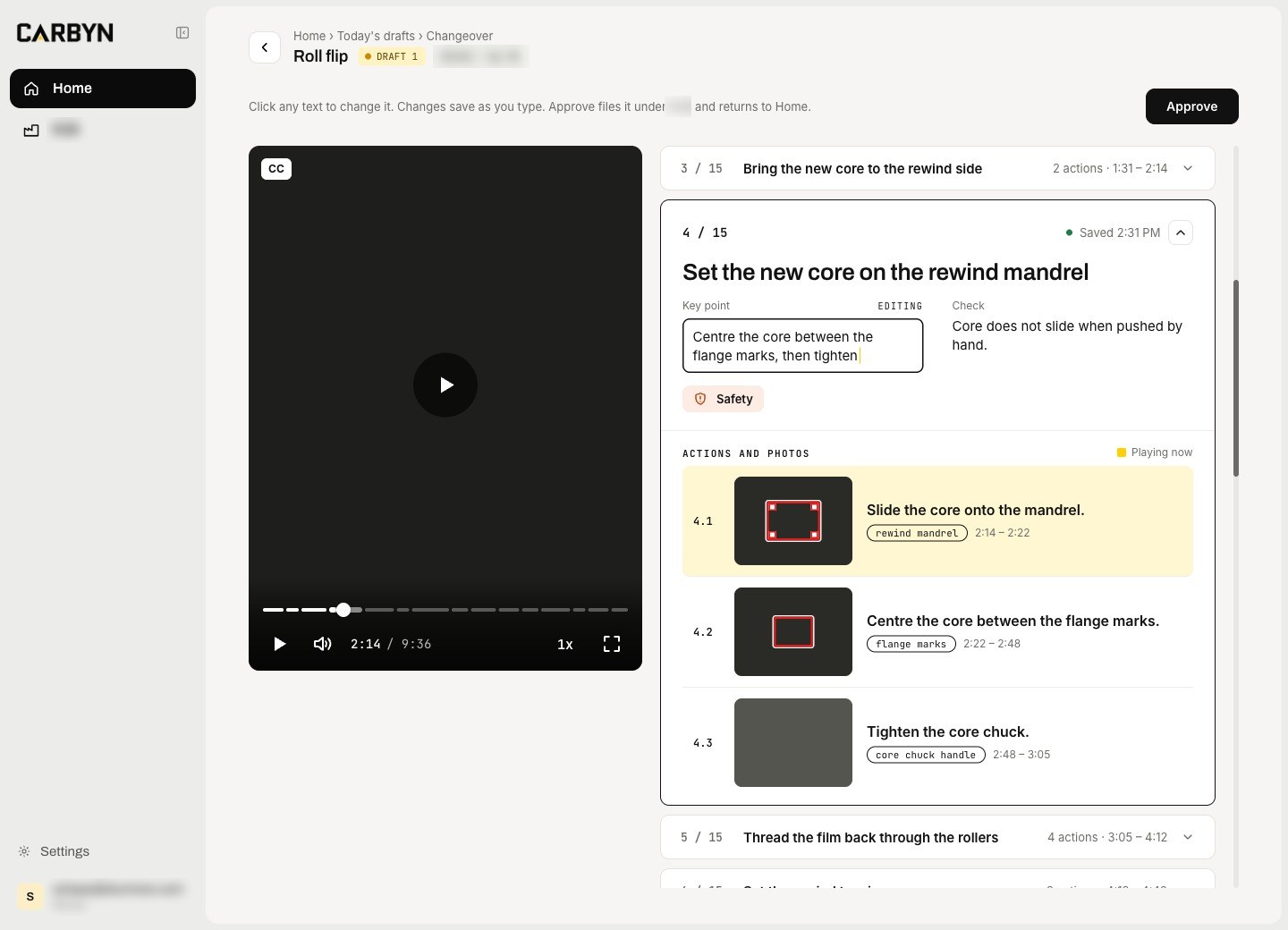
- Order. Is this the order you do it in?
- Key point. Is this the thing a new person must not get wrong?
- Check. Would this check tell them the step is done?
- Numbers. Are the settings, sizes and counts the ones you said?
- Safety. Is every hazard you know about marked on its step?
3Fix what is wrong#
Tap any text and type the correct words. Changes save as you type.
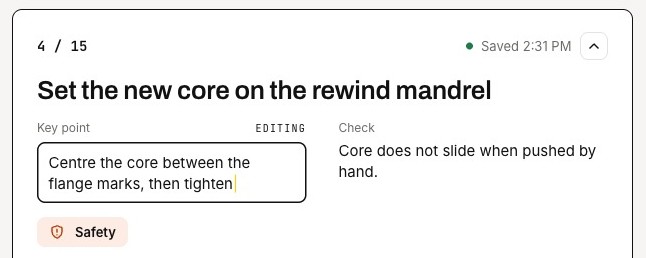
Write it the way you would say it to a new person at the machine. Short is better.
4Approve#
When the procedure is right, press Approve. It is filed under its machine, where your team can open it.

If you are not sure about a step, do not approve yet. Ask the person who knows that step to look at it with you.
Good to know#
- You can come back to a draft later. Your changes are kept.
- An approved procedure is the one your team sees under the machine.
Quick fixes#
- A step is missing
- Write it into the step before or after it, and tell Carbyn. We fix the draft and use it to do better next time.
- Steps are in the wrong order
- Tell Carbyn which draft. Do not approve it yet.
- A photo shows the wrong moment
- Leave the text right and tell Carbyn which step. The text is what matters most.
- No drafts after 30 minutes
- Leave the files where they are and tell Carbyn. Nothing you uploaded is lost.
- Something else
- Email support@carbyn.ai.