Step 1 · 10 min
Set up the iPad and glasses
One iPad does the whole job. It takes the clips from your glasses and adds them to Carbyn Web. Nothing is copied to a desktop.
Carbyn does this setup with you
1Check what you need#
- One iPad on your Wi-Fi, with free space for a day of video. A 5 minute clip is about 500 MB.
- The glasses, charged in their case.
- A Meta account for the Meta AI app. Use one account for the iPad, not a personal one.
- Your work email. Carbyn sends your sign-in link there.
2Install Meta AI and pair the glasses#
Install Meta AI from the App Store and sign in. Turn on Bluetooth, keep the glasses next to the iPad, and follow the app to add them.
When the iPad asks, allow Photos, Bluetooth and Location. Importing needs all three.
You are done when Meta AI shows the glasses as connected.
3Set the video settings#
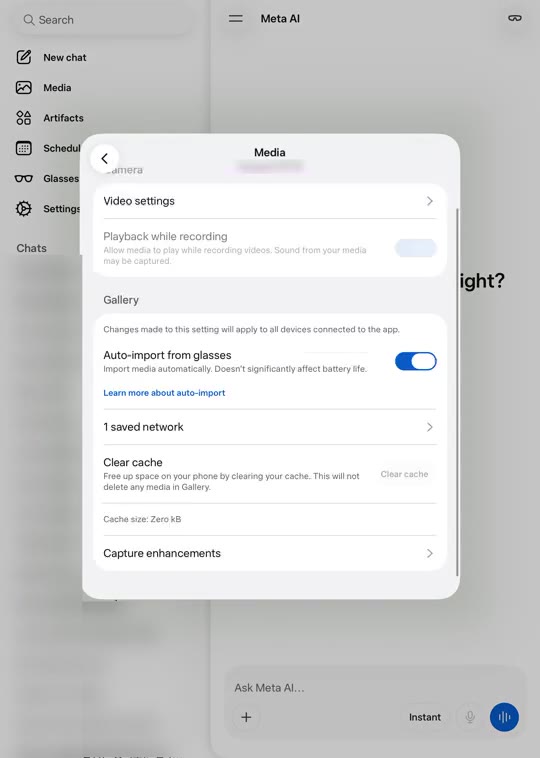
In Meta AI tap the menu at the top left, then Settings. Under Glasses tap your glasses. In Device settings scroll to Media, then open Video settings.
Media › Video settings › Resolution
1080p (full HD)
3K stops every clip at 3 minutes and makes files much larger.
Media › Video settings › Frame rate
30 fps
Allows the longest clips.
Media › Video settings › Video length
5 minutes
The longest setting, so a job is not cut short.
Media › Video settings › Video stabilization
High
Keeps the picture steady when you turn your head.
Set resolution and frame rate first. The 5 minute length only appears with full HD at 30 fps.
4Test one clip#
Press and hold the capture button on the glasses and record ten seconds. Press it again to stop. Fold the glasses and put them next to the iPad.
The iPad joins the glasses' own Wi-Fi for a moment. Tap Join if it asks. Open Photos and check the clip is there.
If the clip is in Photos, the iPad and glasses are ready.
Quick fixes#
- Meta AI will not open or sign in
- Your network may block Meta. Ask IT to allow Meta's apps on the network the iPad uses.
- The glasses do not show up
- Open the glasses, hold them next to the iPad and check Bluetooth is on.
- Video length stops at 3 minutes
- Resolution is set to 3K, or frame rate to 60 fps. Set full HD and 30 fps first.
- The test clip is not in Photos
- Check Bluetooth and Wi-Fi are on. In Meta AI tap Glasses, then Import.
- Something else
- Email support@carbyn.ai.