Step 2 · 3 min
Sign in on the iPad
You do this once on the iPad. After that Carbyn opens from its own icon and stays signed in.
There is no sign-up page
1Open the link from Carbyn#
Open the email on the iPad and tap the link. It must open in Safari.
The link works once. Open it when you are ready to choose a password.
2Choose your password#
Type a password of 8 or more characters, type it again, and press Update password.
Carbyn opens on Home. You are signed in.
3Add Carbyn to the Home Screen#
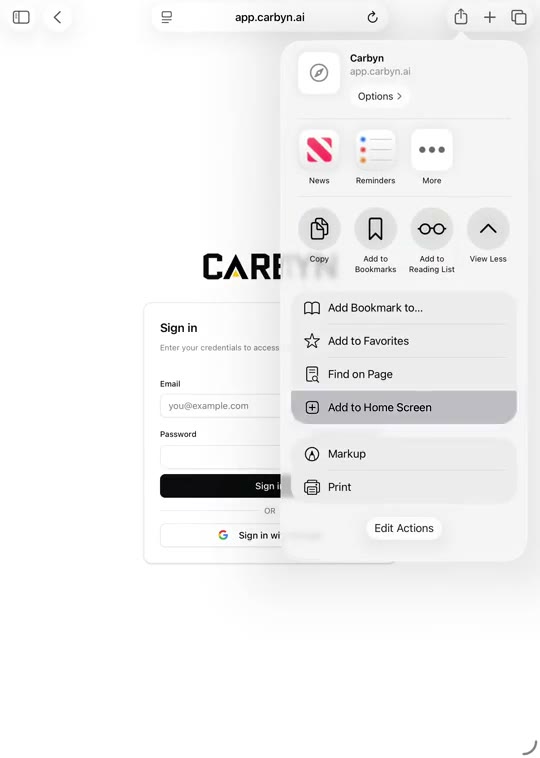
In Safari, with app.carbyn.ai open, tap Share, then View More, then Add to Home Screen.
Check that Open as Web App is on, then tap Add.
With Open as Web App on, Carbyn opens like its own app, with no address bar and no other tabs.
4Sign in from the new icon#
Go to the Home Screen and open the Carbyn icon. Sign in with your work email and the password you chose.
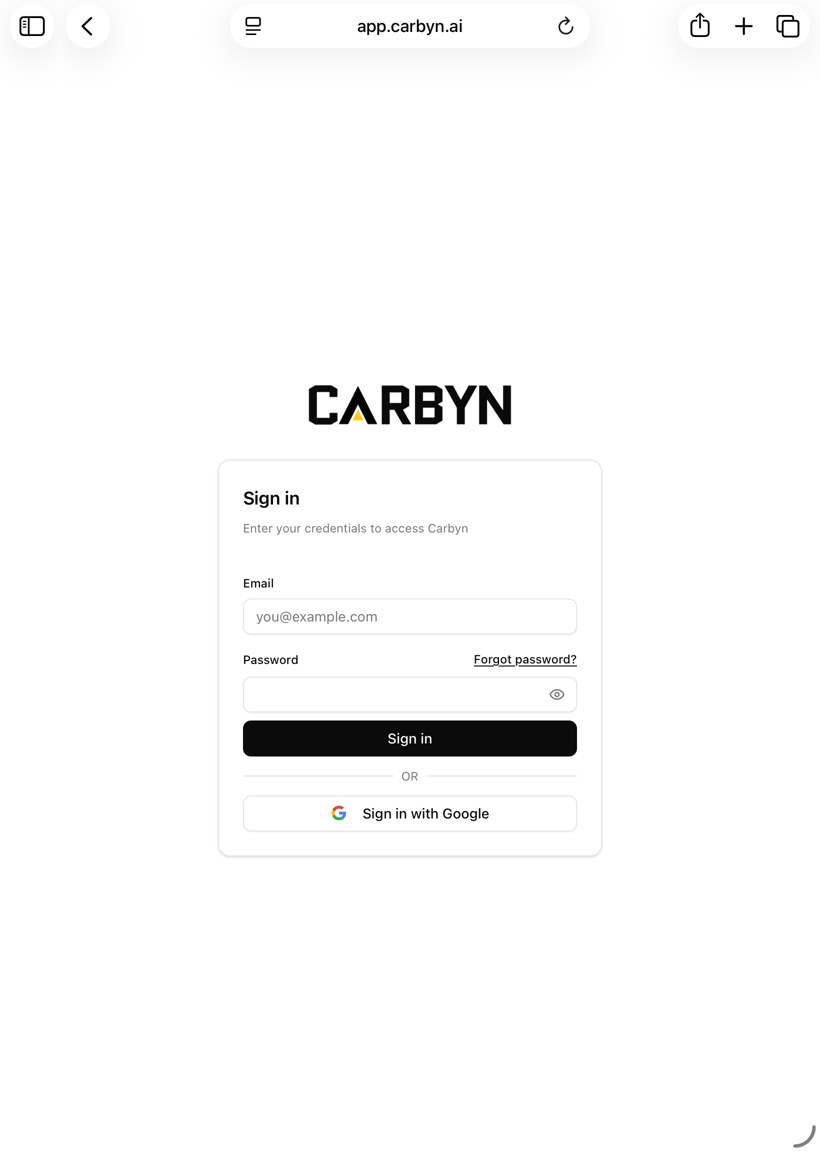
The icon keeps its own sign-in, apart from Safari. You sign in here once, and it stays signed in.
Quick fixes#
- The page opens but sign-in fails
- Your network is blocking Carbyn. Ask IT to allow app.carbyn.ai and auth.carbyn.ai.
- The link says it no longer works
- It works once and then expires. Tap Forgot password? on the sign-in page and follow the email.
- The link opened inside the mail app
- Press and hold the link, then choose Open in Safari. Add to Home Screen only shows in Safari.
- Add to Home Screen is not in the list
- Tap View More at the end of the row. If it is still missing, use Add Bookmark.
- Something else
- Email support@carbyn.ai.